Trimming spending on digital subscriptions using privacy-friendly DNS

Why pay for something if you don’t need to?

When I subscribed to YouTube Music, it was because I needed a music subscription service. I’d been using Spotify for a few years, but I wanted to change things up a bit, and it seemed like a pretty good deal to be able to get the Family version of YouTube Music for $14.99 a month and then pay $3.00 more per month to have an ad-free YouTube experience that I could share with a few relatives.

There’s a bit more to YouTube Premium than that, like having background play on mobile, but just not being bombarded with ads was what really mattered to me. I have an ad-blocker on my browser, but I don’t have one on my TV, and I was playing a lot of YouTube videos through my TV at the time. So, it seemed worthwhile.

Trying to pare down the things I own, the things I spend money on, the things I wear, has been something I’ve been working on for months or maybe years now. I’ve been trying to simplify my life so that I can regain some freedom to just sit and enjoy life without being burdened by the mental weight of all the things I own, subscribe to but don’t use, bought but can’t find time to use, and so on.

I’ve made a lot of progress with removing items, so I started thinking about other ways to minimize. One easy way is to limit the number of subscriptions for digital services I have. It’s easy enough to put Hulu on pause when we’re not using it. I still need to take a look at Netflix and see if I can do something similar. I probably won’t be renewing Disney+ when my annual subscription ends. Instead, I’ll just wait about a year, pay for 1 month, and then catch up on the few things that I actually want to see. We also have Amazon Prime, which includes videos. Oh, and HBO Max.

It’s kind of annoying, but they seem to be in collusion with each other, to always be offering one or two shows that most people would really want to see so that you can’t get away with just having one subscription or another. Or not having a “pause” option so that you can easily bounce back and forth without losing your watch history and watch lists.

So, for paring down digital services, I went after the low-hanging fruit first, which in this case is YouTube Premium. Of all the services I use, this one provided the least return for the money I was paying, and I think I found a way to retain most of the benefit of the subscription (to me) without having to actually pay for it.

I was doing some research and came across an article that was talking about setting up a Pi-Hole, a Raspberry Pi (a type of single board, small computer) that has been configured to block ads and monitor your home network. I don’t want to put money into more hardware at the moment, but reading up on Pi-Holes clued me in to DNS providers that will block ads, scams disguised as ads, and some forms of malware by just changing the DNS settings on my home router.

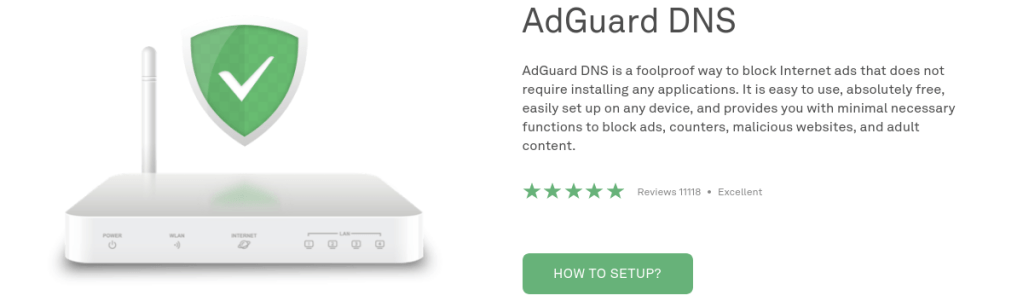
Some of them charge money after a free trial period, typically about $20 per year, but Adguard provides this service for free, for now. So, I figured, why not use AdGuard to block the ads on YouTube instead of paying a subscription fee to accomplish the same task? It would save me $17.99 + tax per month and give me an excuse to cut off a service that I wasn’t really using enough to justify the cost.

I don’t listen to as much music in the car as I used to. I generally listen to audiobooks that I borrow from the New York Public Library or Brooklyn Public Library or podcasts that I download before leaving the house. For what music I do want to listen to, our Amazon Prime subscription should pretty adequately cover our needs. That’s another problem: overlapping services.

Anyway, hopefully AdGuard will block any advertising that may be included with Amazon Prime Music at home and we won’t notice much of a change in our daily routines. Eventually, I’ll set up a Pi Hole here at home, but that’s going to have to wait. Before that, I want to figure out a home network storage solution for backing up our important media and making it accessible from anywhere.

Board of Elections training

Almost a year ago, on October 1st, 2020, I submitted an application to work for the Board of Elections in New York City. I figured it would be interesting to actually work on an election day. Plus, I’d heard it was pretty good money. I cut it a little too close to work on the 2020 general election (and maybe that was a blessing in disguise considering how contentious it was), and I never heard back about training, so I sort of gave up on the idea.

Today, I got an email about attending training on Thursday in the late afternoon. It’s strange that the notice was so short, but it fits my schedule because I work early mornings. I’m going to go check it out and see what they’re offering. I took a look at the election schedule and the upcoming election is on November 2nd, which is a Tuesday. Being honest, if the hours required conflict with my regular job and doesn’t pay as much, it isn’t going to be worthwhile, even for the experience of participating in the democratic process in a more involved way.

One of my favorite religious symbols – the Shiva Nataraja

A symbol of creation and destruction and the struggle to overcome ego through #spiritual #contemplation, the Shiva Nataraja, or Dancing Shiva is one of my favorite religious symbols. This explanation of the symbol by Aldous Huxley isn’t very thorough, but it’s clear and easy to understand.

I think what I appreciate so much about it is that it’s so comprehensive that you can meditate on the meaning of all reality just through the symbolism in this image. Birth, death, the infinite vastness of time and space, the insignificance of our place in it all, and the need to struggle to be better people anyway.

I wonder, were it not for the Jewish restrictions on creating images of the divine (which was more literally expressed in Islam), would we have a richer and more complex tradition of religious symbolism in the West. Something as complex as this image to describe the Abrahamic God or the Trinity and the Christian worldview.

Getting Fallout 76 to work on Kubuntu 21.04

Look at that terrible FPS

Ok. I managed to get #Fallout76 working on Kubuntu 21.04. My laptop has an Nvidia GTX 970M, so the performance was abysmal, but at least I know it can be done.

I had to install Glorious Eggroll Proton 6-16-GE-1, Nvidia driver 418.211.00, and then rename some files. I had some issues getting Kubuntu to recognize the Nvidia drivers (they weren’t showing up in driver manager) and after a few attempts to manually install drivers using the CLI, I somehow broke the Nvidia drivers entirely and most of what should be showing in nvidia-settings was missing. When I went to driver manager, all of the options, which were previously grayed out, were available, so I picked one and partway through it told me that there was an error and gave me a CLI command to run to manually configure the nvidia drivers. Something like sudo dpkg –config -a, but I don’t recall for sure.

During that process, Konsole popped up a screen that guided me through creating a new UEFI password that required a reboot. After that, I thought I was set but Fallout 76 was still booting to a black screen. I was able to get Fallout 4 to boot, but not Fallout 76.

Apparently, even with Nvidia set to performance only mode, which should have the laptop using the Nvidia card all the time, Fallout 76 was trying to use the #Intel drivers and leaving me with a black screen on launch.

So, I had to do the following to stop Fallout 76 from using the Intel drivers:

sudo mv /usr/share/vulkan/icd.d/intel_icd.x86_64.json /usr/share/vulkan/icd.d/intel_icd.x86_64.json.disabled

sudo mv /usr/share/vulkan/icd.d/intel_icd.i686.json /usr/share/vulkan/icd.d/intel_icd.i686.json.disabled

Source for Intel driver fix above: Proton Github Valve Software Moderator kisak-valve

I guess I’ll have to switch those back before trying to put the laptop back into #Nvidia on-demand or Intel power saving mode.

Now I just have to think about whether there’s anything else stopping me from installing #Kubuntu or some other version of #Linux on my desktop and dumping Windows entirely.

Also, after messing around with this for a few days, I’ve realized that I don’t even really like #KDE. It’s kind of annoying, even if it probably is the best option for my laptop.

Site recently migrated to new host

Hi. This site was recently migrated from DreamHost to WordPress.com. It looks like the migration lost some images, so those will have to be re-added manually.

Update: The images should be fixed. Next, I had an “embed anything” plugin while using self-hosted WordPress that I’d used regularly in my recent posts, so I need to go back through and find a way to correct that.

Update: Well, I fixed that by just taking a screenshot of what an embed would look like. It’s pretty janky, but whatever. It’ll do, and in the future I’ll just not write a post in a way that an embed would be a featured part of it if WordPress.com can’t do that embed.

Anyway, it looks like everything is up and running about how I’d like it and about how it was before. I suppose I’ll mess around a bit with the themes that are available on WordPress.com, but that’s about it before I start posting again as usual.